Setting up Nocturne 49
Everything you need in the first hour with your Nocturne 49: connections, settings, adjustment and care.
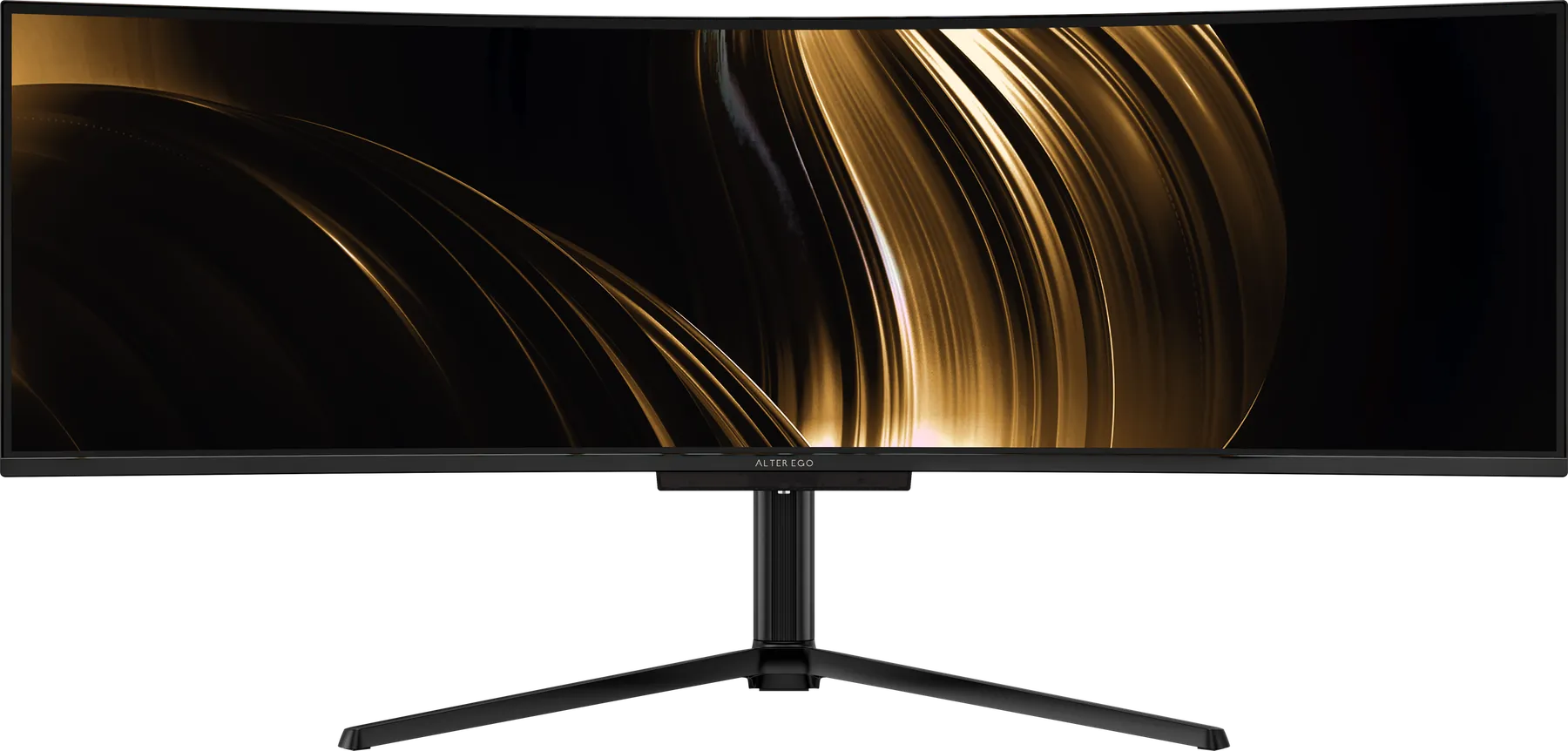
In the box
Power cable · DisplayPort cable · USB-C cable · Manual.
1. Place it
Set the display on a solid desk with room behind for cables and ventilation, out of direct sunlight. Sit roughly an arm's length away, centred on the screen. More on height, distance and light.
2. Connect it
Nocturne 49 accepts 1 × HDMI 2.1 · 2 × DisplayPort 1.4 · 1 × USB-C.
- Desktop computer: use DisplayPort 1.4 for the highest refresh rate at 5120 × 1440.
- Laptop: one USB-C cable carries picture, data and up to 90 W of power to your laptop.
- Console: HDMI 2.1 accepts current game consoles.
3. Set resolution and refresh rate
Open your computer's display settings and choose 5120 × 1440 and the highest refresh rate available, up to 240 Hz. Many computers default to 60 Hz. Enable Adaptive-Sync / FreeSync in your graphics settings to remove tearing in games and video.
4. HDR
Nocturne 49 is rated DisplayHDR True Black 400. Turn on HDR in your operating system's display settings when viewing HDR films, photos or games, and dim the room slightly. What the HDR labels mean.
5. Adjust the stand
Height: 120 mm travel · Tilt: −5° to +20° · Swivel: ±20°. Set the top of the picture at or slightly below eye level and tilt it to face you. The display also accepts a VESA 100 × 100 arm or wall mount. Choosing an arm.
6. Features worth setting up
-
Two computers (KVM): connect one computer by USB-C and another by DisplayPort or HDMI with a USB upstream cable. Your keyboard and mouse, plugged into the display, follow whichever input is selected. How KVM works.
-
Picture-by-picture: show two inputs side by side, each on half of the panel.
-
USB hub: 2 × USB-A 3.0 · 1 × USB-B upstream. Peripherals plugged into the display follow the connected computer.
-
Audio: Speakers 2 × 5 W + 10 W · headphone out.
Care
Switch off and use a dry microfibre cloth; dampen it very slightly with water if needed. Never spray liquid on the panel. As an OLED display, it rewards a few habits with static content: let the taskbar hide, use dark themes where you can, and let the display sleep when you step away, leaving it connected to power so it can run its maintenance cycle. Living with an OLED display.
Warranty and help
Your display carries a one-year limited warranty. Contact your Alter Ego advisor for any question or claim; they handle it from the first call to the return. Full specifications are on the Nocturne 49 page.